 Snapper
Screenshots that never leave your PC.
Capture, mark up, and record your screen on Windows. No cloud. No uploads. Your captures stay on your PC unless you decide otherwise.
Why people switch to Snapper
Nothing is uploaded
Many capture tools send your screenshots to their cloud to make a share link. Snapper has no cloud. What you capture stays on your PC.
Blur what's private
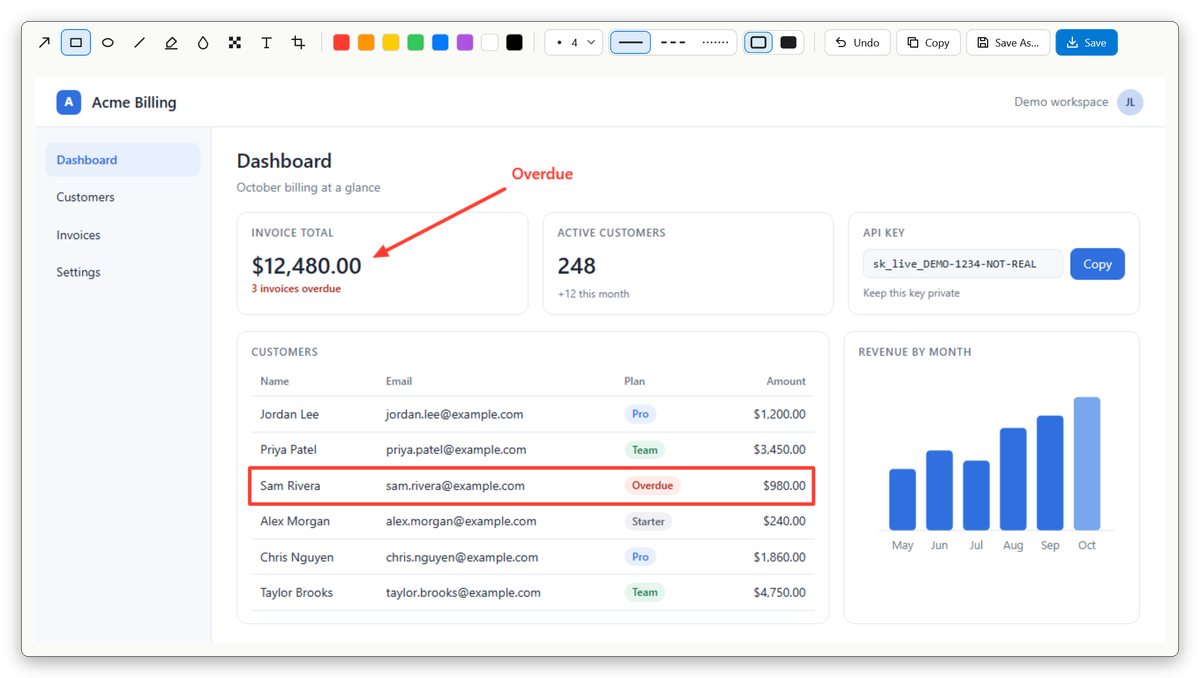
Blur or pixelate passwords, emails and customer names before you send a screenshot to anyone.
Ready to paste
Every capture lands on your clipboard. Paste it straight into email, chat, or a document.
Snapper has no upload feature. There is no server for your captures to go to.
Want your captures in OneDrive, Dropbox, or Google Drive? Save them to that folder. Your choice, not ours.
| Feature | Snapper | Cloud capture tools |
|---|---|---|
| Uploads captures to the vendor's cloud | No | Often |
| Creates share links on someone else's server | No | Often |
| You choose where every file is stored | Yes | Sometimes |
| Blur and pixelate built in | Yes | Sometimes |
| Screen recording and GIF included | Yes | Sometimes |
Everything you need in one small app
Capture anything on screen
Drag around part of the screen, pick a window, or take the whole screen. Press Ctrl Shift 4, or click Snapper in the taskbar corner.

Mark it up
Add arrows, boxes, circles, lines, text and a highlighter. Blur or pixelate anything private. Then copy it or save it.

Record your screen
Record part of the screen, a window or a whole display to a video, with your PC's sound and your microphone. Pause, start over or stop from a small bar that never shows up in the video.

Make GIFs and mark them up
Record a short GIF to show someone how to do something. Arrows and text you add land on every frame, and the timing stays the same.

Details you'll appreciate
- Leave no trace: screenshots go to the clipboard only, and nothing appears in History. Recordings are kept for a couple of minutes so you can paste them, then deleted. (Ephemeral Mode)
- History: find any past capture by searching.
- Your shortcuts: change any of them, or use the Print Screen key.
- Timer: wait 1 to 5 seconds before the capture, to open a menu first.
Questions
Where are my captures stored, and can I change the folder?
In the Snapper folder inside your Pictures folder. To pick a different folder, click More, find Save Folder, and click Change….
Can I save captures to OneDrive, Dropbox, or Google Drive?
Yes. Choose that service's folder as your save folder, and it syncs your captures. Snapper never uploads anything for you.
Which versions of Windows does it support?
Windows 11, and Windows 10 version 1809 or later. Screen recording and GIFs need Windows 10 version 1903 or later.
What happens to my captures if I cancel?
They stay where you saved them. Screenshots keep working. Recording, GIFs and markup need Snapper Pro.
Can I use it at work?
Yes. See Snapper for Business, or contact The TechXperts.
Your screen. Your PC. Nothing uploaded.
Snapper for Business: central deployment, locked settings and company licenses.
Made by The TechXperts. We provide IT support, cybersecurity and AI consulting for small businesses.